

callas in Asia: PDF Standards, Tradeshows and Sushi
Opens in new tab
Jeremy Spencer
27 October 2026
The three layers of callas PDF technology: getting files ready for production
A PDF that opens correctly isn’t necessarily ready for production. Explore the three layers of callas PDF technology: normalization, optimization, and preparation, and see how each fits into your OEM workflow.
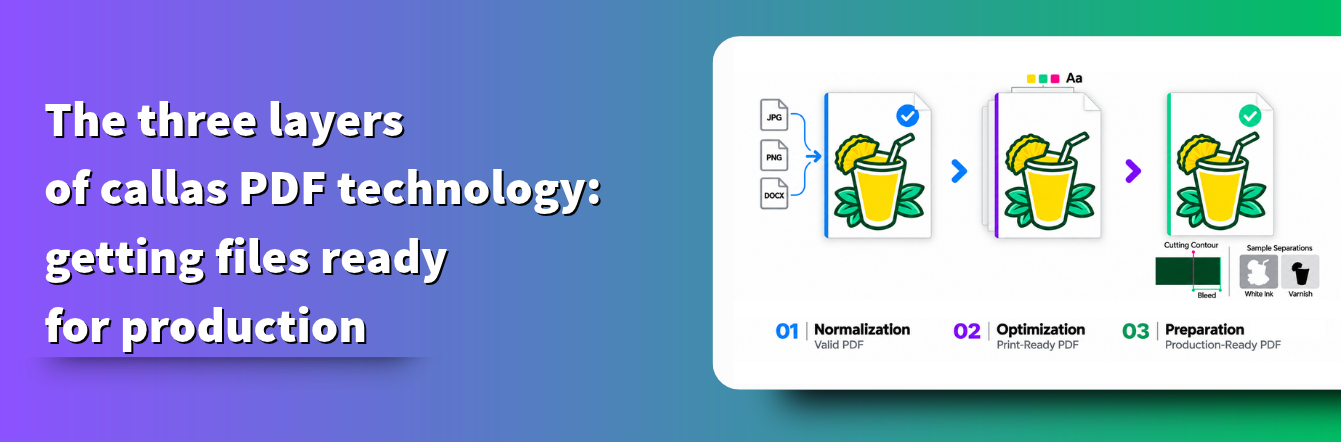
When we talk about callas PDF technology, it helps to address three questions: Is the PDF valid? Can it print efficiently and reliably? And does it contain everything the intended production process needs?
A file can open correctly yet take far too long to process. Another might print perfectly but lack the cut contour the finishing equipment needs. So, although the “PDF works” sounds reassuring, we still need to establish what it works for.
We describe these requirements as three layers: normalization, optimization, and preparation. Each addresses a different part of getting incoming content ready for production.
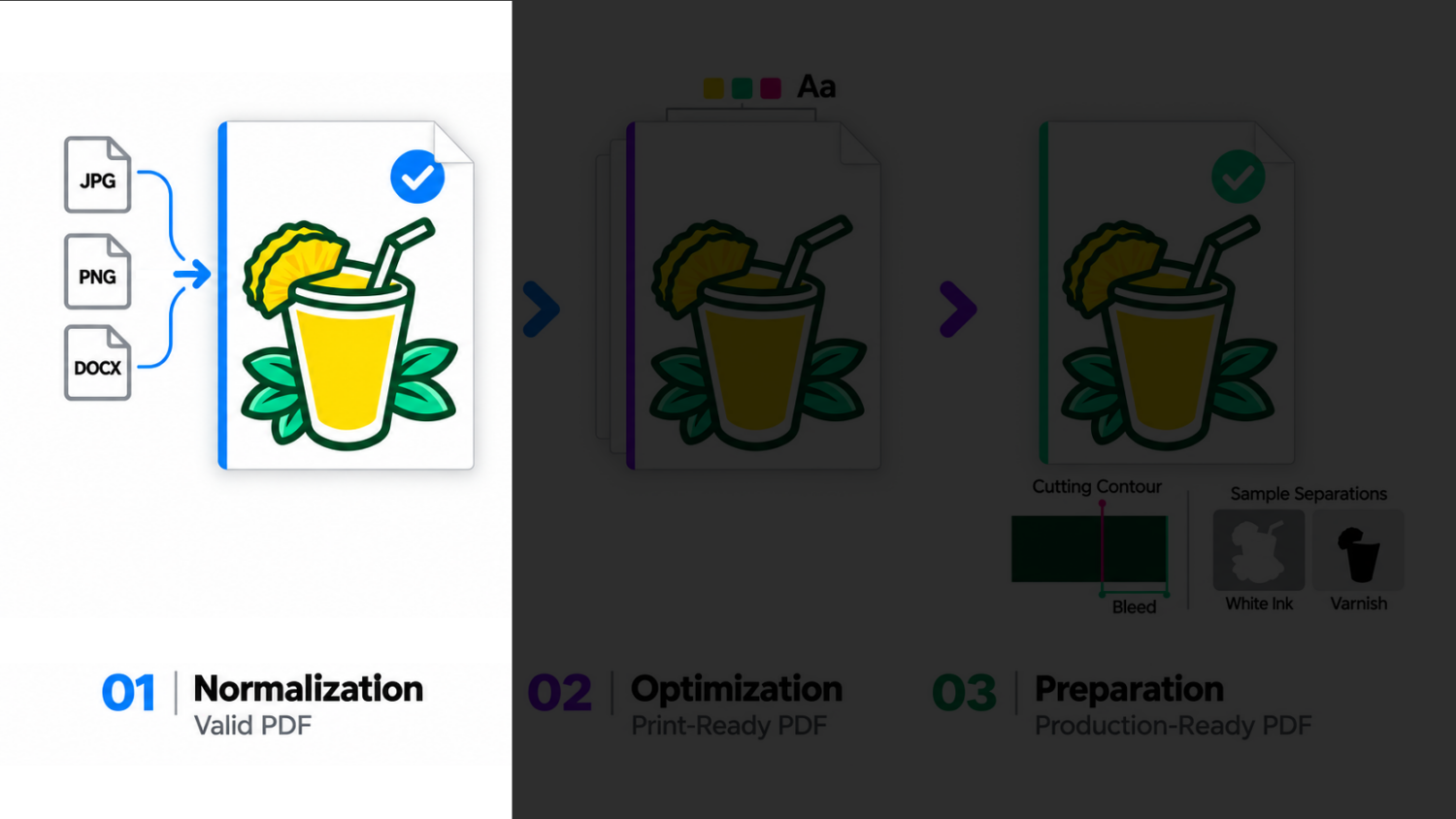
Print workflows receive files from many different applications. Professional design tools are part of the mix, alongside office software, online platforms, and AI services. Whatever their origins, those files need to provide a reliable foundation for further processing.
The normalization layer addresses that starting point. pdfToolbox can convert JPEG, PNG, and TIFF images (and a slew of other formats), as well as HTML and SVG, into PDF. Office documents can also enter the workflow through LibreOffice input filters.
For files that already arrive as PDFs, normalization addresses known structural problems. We continually examine real-world files, including those customers send to support, and use what we learn to improve how our technology handles them.
These issues can occur in files created by established design applications as well as newer tools. Recent examples include Canva, ChatGPT, Affinity, and InDesign. In practice, the application name tells us less than examining the file itself.
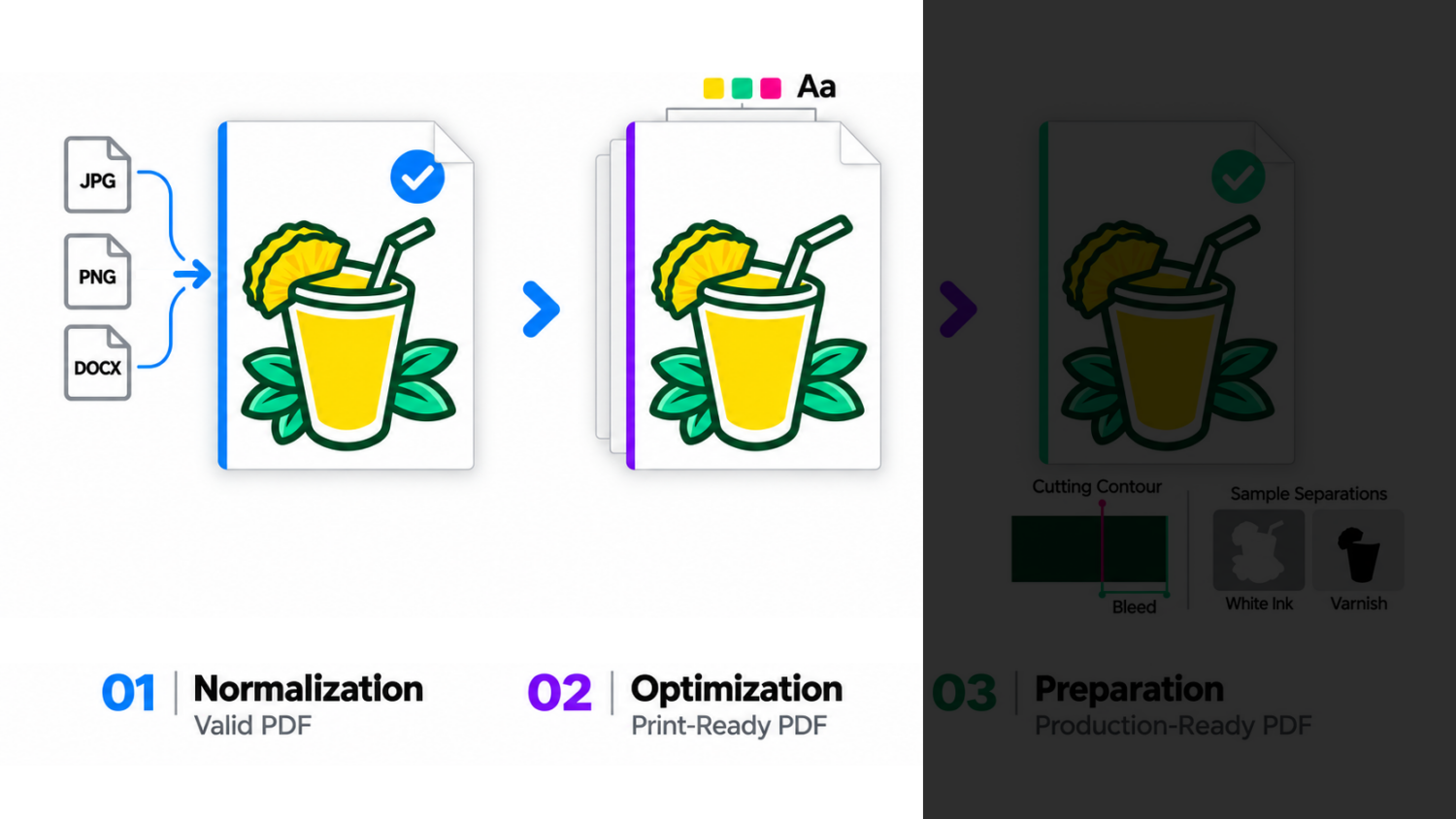
Once we have a valid PDF, we can look at how efficiently it will print. This matters because a structurally sound file can still give a RIP plenty of unnecessary work.
Complex vector paths, oversized images, and redundant objects all deserve attention. Depending on the job, pdfToolbox can simplify paths, remove unnecessary content outside the print area, clean up transparency settings, and apply appropriate compression.
Optimization also covers the resources within the PDF. Color definitions may need harmonizing, embedded font structures may need cleaning up, and images may contain more resolution than the output requires.
The production conditions guide these decisions. A large banner viewed from several meters away has different image requirements from a brochure someone will hold in their hands. Applying the same settings to both would miss the point.
The goal is to avoid long RIP times, memory spikes, and repeated processing attempts, while supporting consistent output. Checks at this stage also help identify problems early, when there is still time to discuss them with the customer. Nothing is as embarrassing as having to contact a customer about a file that’s about to go to print, has now been shown to be problematic, and has been sitting around unchecked for two days…
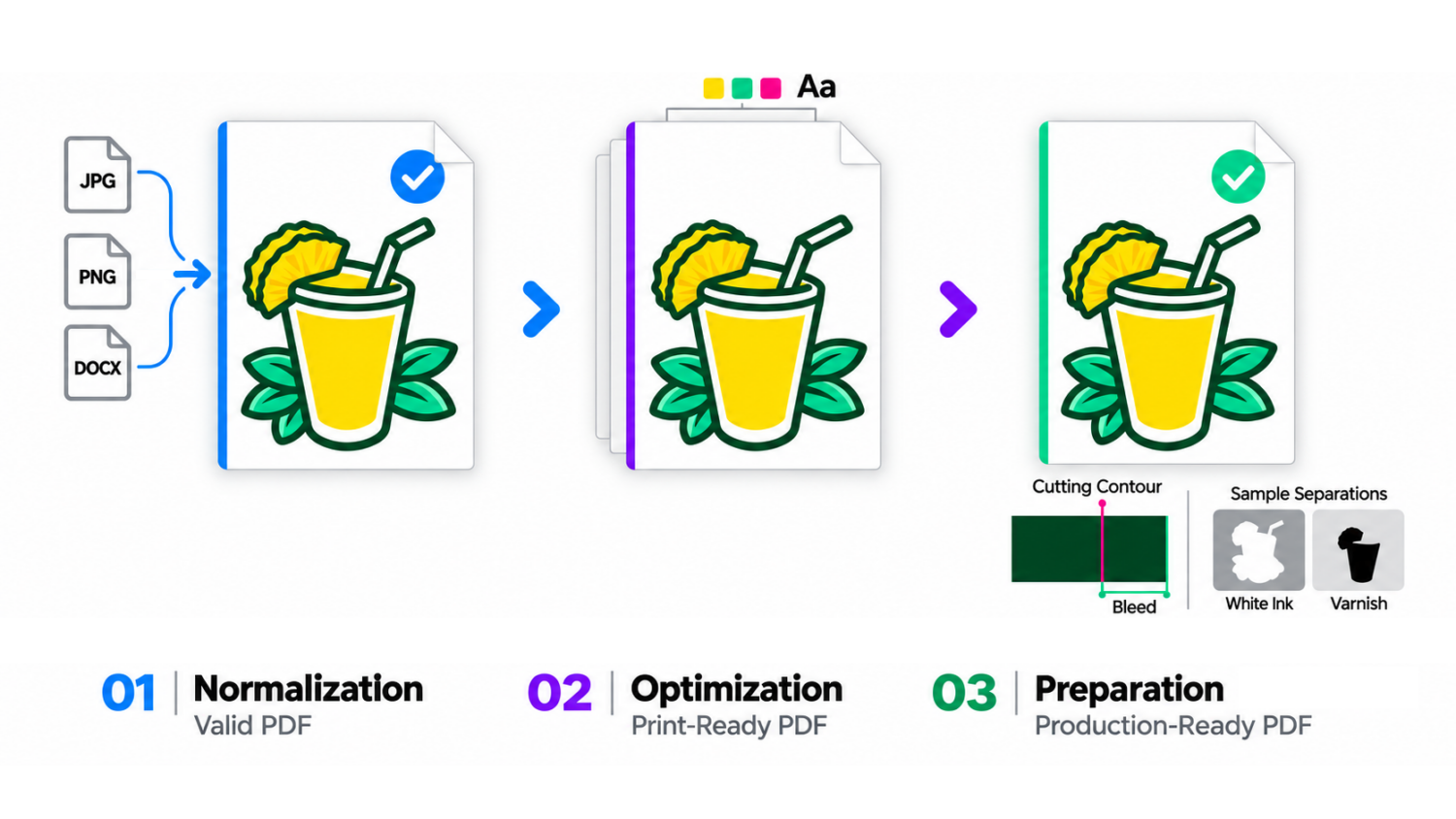
A PDF can be valid and printable without being ready for the job ahead. A label, for example, may still need a cut contour. Printing on a transparent substrate might require a white underprint, while another design needs a varnish separation.
The preparation layer adds these production requirements. pdfToolbox can create shapes for technical separations, generate bleed, and impose artwork. It can also add marks, barcodes, and production information.
Bleed illustrates the distinction nicely. Defining a BleedBox tells the workflow where the bleed area is. It doesn’t extend the artwork into that area. If the background stops at the trim edge, preparation may need to generate the missing bleed using a method suited to the design.
Preparation can also include the documents that accompany a job. Proof sheets, for instance, can combine a PDF preview with color information and metadata supplied by an MIS or web-to-print system. That saves someone from assembling the same information manually for every order.
For OEM developers, the three layers of callas PDF technology provide a practical way to plan an integration. Normalization establishes valid input, optimization prepares it for efficient printing, and preparation supplies what the intended product requires.
The processing should follow the job. A contour-cut label and a book page share some requirements, but their finishing needs differ significantly.
By combining the appropriate operations in your application, you can carry those requirements through the workflow automatically. The result is a PDF ready for the next production step, with fewer reasons for someone to open it and work out what still needs doing.
callas in Asia: PDF Standards, Tradeshows and Sushi
Opens in new tab 
PRINTING United 2026: Faster production starts with better PDF data
Opens in new tab 
callas software releases new pdfNest OEM module
Opens in new tab